VPN Installation Instructions for Linux (Ubuntu)
Installing the Cisco Secure VPN Client
Connecting to VPN | Disconnect from VPN
Connecting to FULL VPN | Disconnect from FULL VPN
Installing the Cisco Secure VPN Client
-
Download the Cisco AnyConnect VPN Client for Linux installer. Make sure to select the group called VPN-MS365 as shown in the screenshot below.
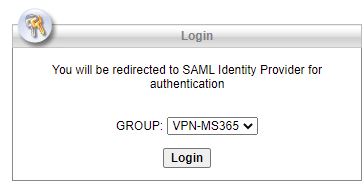
- Enter your Microsoft 365 email.
- Click Next.
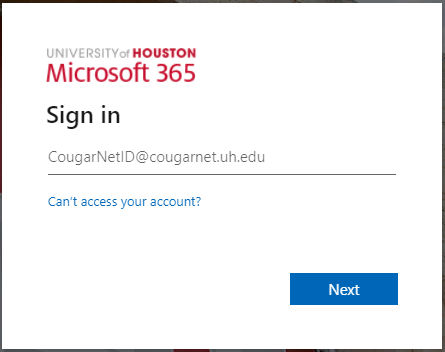
-
Enter your Microsoft 365 password.
- Click Sign in.
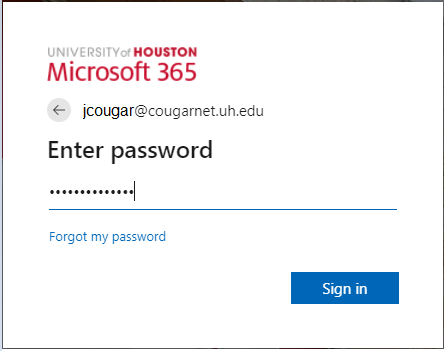
-
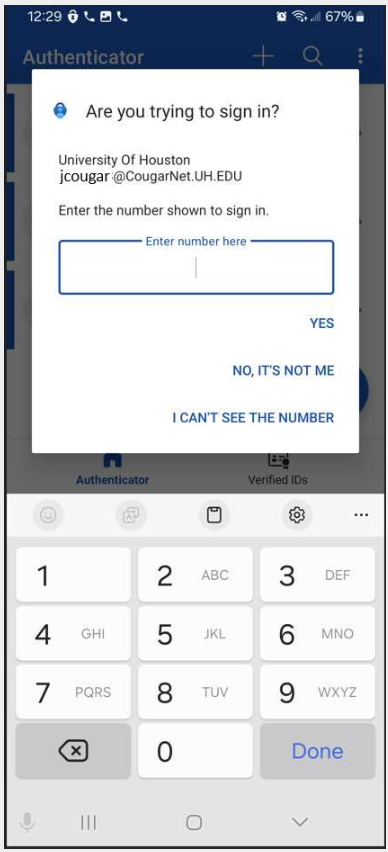
You will be prompted to authenticate through Microsoft Authenticator.
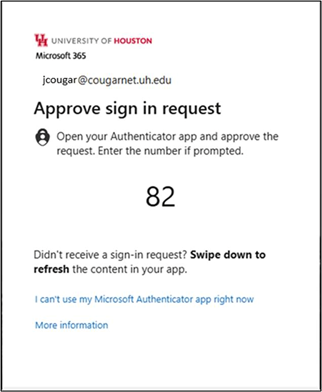
- Enter the two digits from the screen above.
- Tap Done.
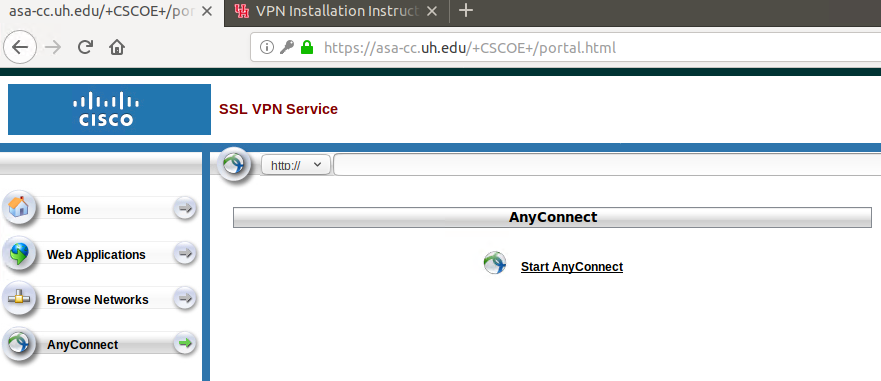
- Click AnyConnect.
- Click Start AnyConnect.
-
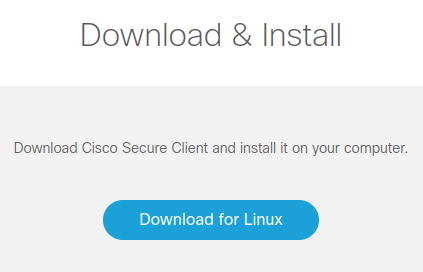
Click Download for Linux and copy the file to your desktop.
-
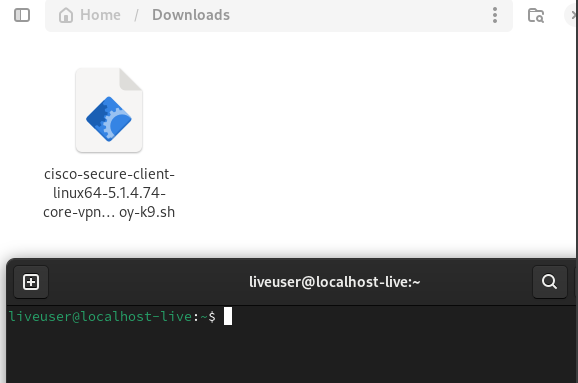
Open Terminal. Drag the file into Terminal. Remove the quotes and type sudo bash in front of the file location. Press Enter.

-
Type your password and installation should begin.
-
Installation is done when you see the following.

Connecting to the UH VPN
This is for users that need to access UH secure network resources from off campus. Please make sure to have the Microsoft Authenticator mobile app installed on your device before starting.
- Open the search bar and search for Cisco. You should see the Cisco icon.
- Click to open.

- Type vpn.uh.edu/VPN-M365.
- Click Connect.

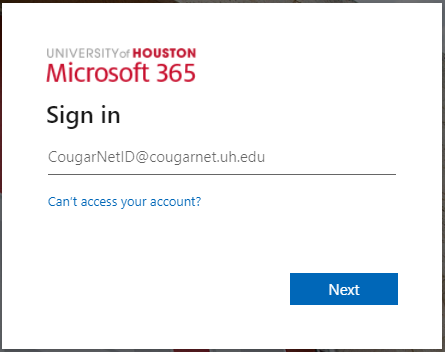
- Once prompted enter your Microsoft 365 email.
- Press Next.
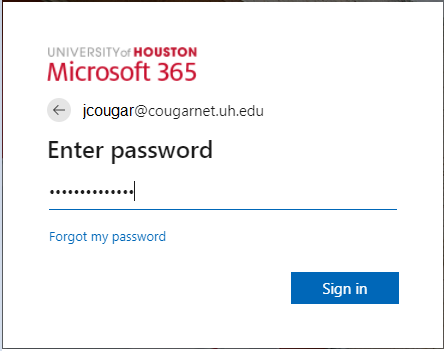
- Enter your Microsoft 365 password.
- Click Sign in.
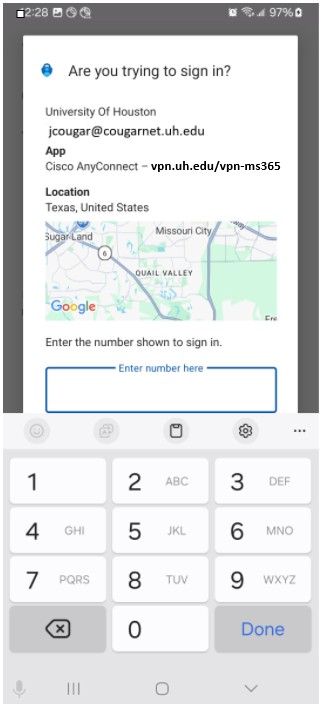
- You will be prompted to authenticate through Microsoft Authenticator.
- Enter the two digits from the screen above.
- Tap Done.
Disconnect from the UH VPN
-
Click on the Cisco icon to open the connection box.

-
The connection box will open. Click Disconnect.
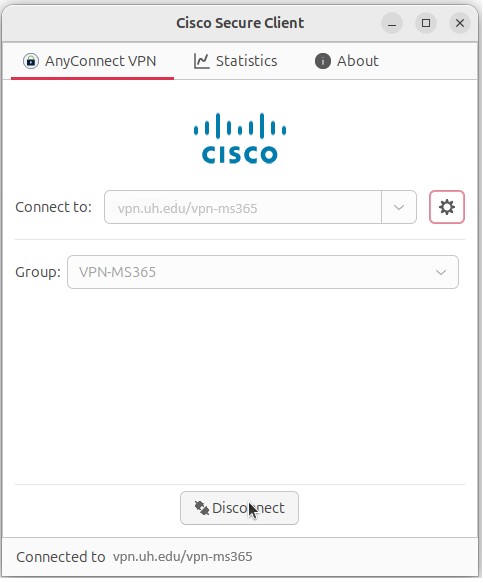
Note: You are now disconnected from UH VPN and will be required to re-enter your password to reconnect.
Connecting to the Full UH VPN
This is for users that need to access web-based journals and databases licensed by UH Libraries. Please make sure to have the Microsoft Authenticator mobile app installed on your device before starting.
- Open the search bar and search for Cisco. You should see the Cisco icon.
- Click to open.
- Type full-vpn.uh.edu.
- Click Connect.

- Once prompted enter your Microsoft 365 email.
- Press Next.
- Enter your Microsoft 365 password.
- Click Sign in.
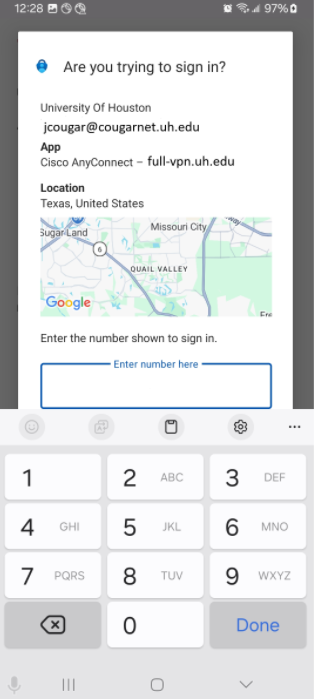
- You will be prompted to authenticate through Microsoft Authenticator.
- Enter the two digits from the screen above.
- Tap Done.
Disconnect from the Full UH VPN
-
Click on the Cisco icon to open the connection box.
-
The connection box will open. Click Disconnect.

Note: You are now disconnected from full UH VPN and will be required to re-enter your password to reconnect.